How to use Samsung's Find My Mobile

How to use Samsung's Find My Mobile

No Comments


Samsung's Find My Mobile locator can locate your phone on the map, and it works pretty much the same as the Find My Device service from Google or Apple's Find My iPhone. A Samsung phone tracker - Find My Mobile - can also help to keep tabs on your phone until you get it back.


How to use Samsung Find My Mobile:


If you have never used the Find My Mobile service before, you will need to agree to its terms of service before you can start, and after a quick setup you will be able to locate your phone.


It should be noted however that Samsung's Find My Mobile will only work if your phone is turned on. And if it's turned off, you may need to check back periodically to see if it's turned on. And if you run out of battery you will have to turn to old detective work.


  • Go to FindMyMobile.Samsung.com and you will find a Samsung tool online to locate the lost device. If you have never used this tool from your computer and are not logged in, select Sign in.
  • On the login screen, enter the email address or phone number used to set up your Samsung account, as well as your password.
  • If you have never used this tool before, then you first need to agree to the privacy policy from Samsung and allow it to locate your phone, and accept some legal terms. If you agree with all of this, select OK.
  • If your phone is also signed in to your Samsung account, the Find My Mobile app will instantly locate your lost phone on the map.
  • If your lost phone is near and you cannot locate it, select Ring, then Ring again to command the device to ring or sound. It will ring at the highest volume, even if the volume is turned off.

You can also ask the Samsung tracker to monitor your phone until you get it back. You can select the location tracker item in the remote tools menu and then start. The application will also update the site every 15 minutes. It will also display a notification on your phone that the location is being tracked.

5 ways to quickly open the System window in Windows 10

5 ways to quickly open the System window in Windows 10

No Comments

Starting with Windows 10 Update (October 2020), Microsoft removed the System window from the Control Panel, however, the information did not go to forever, it is now in Settings as an About page, and here are five ways to quickly open the System window in Windows 10 On your computer.


But if you haven't installed Windows 10 October 2020 Update, these shortcuts will open System page in Control Panel.


Keyboard shortcut:


Probably the fastest way to open the System then Convert window is to press (Windows + Pause / Break) at the same time. You can run this easy shortcut from anywhere and it will work instantly.


File Explorer:


You can also access the System window via File Explorer. Just open the Explorer window and right-click on this PC in the sidebar, then in the menu that opens select Properties and the System window will open immediately.


From the desktop (method 1):


Similar to the above method, if you have this PC shortcut on your desktop, right-click on it, select Properties and the System window will appear after that.


If you want to add a shortcut for this PC to the desktop in Windows 10, please visit System, Personalization, then Themes, then Desktop Icon Settings, after that, just select the checkbox next to the Computer option in the Desktop Icons menu.


From the desktop (method 2):


If you have a shortcut for this PC on the Windows 10 desktop, there is another method that you can use to quickly open the System window, where you should display the desktop, then press the Alt button on the keyboard and double-click on this PC.


Writing a special run command:


You can also open the System window via Command Prompt or Run window, and to do that press Windows + R on your keyboard to open the Run window. In the text box that appears in front of you, type: control / name Microsoft.System, then click OK, and the system window will appear.

How to use the voice recognition feature on iPhone

How to use the voice recognition feature on iPhone

No Comments

Voice recognition feature, which was first introduced in iOS 14, allows iPhone users with a hearing impairment to receive visual alerts when an iPhone detects certain sounds such as smoke alarms, sirens, knocking on doors, and barking dogs. It does this with built-in artificial intelligence, so no network connection is required.


How to use the voice recognition feature on iPhone phones:


  • Open Settings app on your iPhone.
  • Click on Accessibility option.
  • Go to Hearing section and click on Sound Recognition.
  • Click switch next to the voice recognition option to turn it on. Then click the sounds below to choose the sounds you want to recognize.
  • On the next screen, you'll see a long list of keys that correspond to the types of sound the iPhone can recognize, such as sirens and water runoff, as the full list includes:

  1. fire alarm.
  2. warning siren.
  3. Smoke Alarm Device.
  4. the cats.
  5. Dogs.
  6. Devices.
  7. Horn.
  8. door bell.
  9. Knock.
  10. Running water.
  11. Babies cry.

  • Click the toggle switch next to each sound that you want your iPhone to recognize, where you can activate any combination of options.
  • After that, hit the back button once, then exit Settings.
  • If you want to test the feature, try looking for sounds like sirens or baby crying on YouTube, and when turned on, the feature will place an alert notification on the top of the screen.
  • Later, you can see a list of these alerts in your iPhone's Notification Center.

How to quickly turn on voice recognition from Control Center:


You can also quickly enable or disable Voice Recognition using Control Center shortcut: but you'll need to add shortcut to the Control Center screen, and to do that you'll need to make a change in Settings:


  • Open the Settings app and then go to Control Center.
  • In Control Center settings, scroll down to the More controls section and click on Sound Recognition, which should have a green plus icon next to it.
  • Then, Sound Recognition will be listed in the built-in controls section at the top of the Control Center settings page, and you can change the order of the built-in shortcuts by clicking and dragging the knob button to the right of each item.
  • Then, whenever you want to quickly enable the voice recognition feature, just bring up Control Center and tap the feature's icon.

How to recover deleted playlists in Spotify easily

How to recover deleted playlists in Spotify easily

No Comments

Spotify is one of the most popular music streaming services today. It now has 320 million active monthly users, an increase of 29% year-on-year. This wide popularity is due to the features the service provides, as it is easy to use, available across all devices, and has a huge library of music, podcasts, and videos.


Spotify allows you to easily create lists of your favorite songs and music and share them with others. It also provides lists designed for you based on your listening habits - such as: what you like, share, or memorize - as well as the listening habits of others who have similar tastes.


But if you previously deleted a playlist in Spotify and later regretted this decision, you don't need to worry because Spotify automatically backs up the playlists it creates so if you delete them, it's easy to recover.


Today we're going to show you how to recover deleted playlists in Spotify, and also how to download songs and playlists for offline listening:


First; How to recover deleted playlists in Spotify:

  • Log in to your Spotify account page through your computer's web browser.
  • Click on Recover playlists on the menu that appears on the left side of the screen.
  • Find playlists you want to restore, then hit Restore option next to each list.

  • Once you have completed these steps; Open Spotify app on your phone, and you will find the recovered playlists at the bottom of your playlist collection. If not, within minutes, try closing the app and restarting it again.

After restarting the application; If you do not find the playlists, you may have created them in another account, so make sure that you are logged into the account from which you originally created the playlist, and you may have saved your music elsewhere in Spotify, so check your songs under Your music library.


Secondly; How to download songs and playlists:

If you subscribe to (Spotify) service, you can easily download any song, playlist or album you like and listen to it offline, as you can download up to 10,000 songs per device from 5 different devices.


You can download songs on any device you use, whether it is an Android or iOS device or a computer, all you have to do is click the (Download) button at the top of any album or playlist, but finding what you have downloaded is the difficult part because it falls under Within your Spotify music library.


Therefore, you can use filters to only sort your library by downloads, by following the following steps:


  • Open Spotify application on your device, then click on Your Library tab.

  • Click on the Playlists section, click on the (Liked Songs) option.

  • You will now see Download option at the top; Press the toggle button beside it to start downloading the songs you like.
    • And while you keep liking the songs, they will be saved to your library and automatically downloaded to your device. This feature also works with any playlist in your library.

      How to Use Microsoft Teams: Basic Tutorials

      How to Use Microsoft Teams: Basic Tutorials

      No Comments


      Microsoft Teams is a relatively new product in Microsoft 365 lineup, but it is proving to be a more powerful competitor to Slack and Zoom, as integrations with Microsoft applications and other cloud services make it a great option, and learning how to use Microsoft Teams is not an issue. Extremely difficult.


      What is Microsoft Teams?


      Microsoft Teams is a productivity and collaboration tool that integrates with the Microsoft 365 platform, and contains features for networking, private conversations with individuals and groups, video and conference meetings, and more.


      Is it free?


      Microsoft Teams is completely free to use, although there are paid plans that contain more benefits, as the free version includes meetings and video calls, 2 GB of storage per user, and web access to popular Office applications such as Word, Excel and Powerpoint.


      How to use Microsoft Teams; Basic educational programs:


      Learning how to use Microsoft Teams isn't difficult, if you've ever used a competitor like Slack, you should feel relatively familiar, even the layout is nearly identical.


      How to download the application:


      Although you do not need to download desktop or mobile apps to use Microsoft Teams, it is a convenient way to stay in touch, and to get the app, click here and select the right option for you, and you can also download mobile apps directly from Google Play Store or App Store.


      How to create a team:


      • Open Teams tab on the left side.
      • Click Join or Create a Team at the bottom of the screen.
      • Choose whether to create a team from scratch or pull contacts from an existing group or team.
      • Specify the privacy settings: Private, Public, or Enterprise.
      • Enter a name and description.
      • Click Create Team.

      How to create a meeting:


      Chatting is great, but sometimes face-to-face chat is a better option. And it only takes a minute to learn how to create a meeting in Microsoft Teams, whether it's with 1 person or 20 people.


      • Open Calendar tab on the left side.
      • Click New meeting.
      • Enter your meeting details.
      • Click Save.

      How do you join the meeting?


      • Open Calendar tab on the left side.
      • Select the meeting and click Join.
      • Adjust video and audio settings.
      • Click Join Now.

      How to share your screen in the meeting:


      • In the meeting, click Share button in the middle of the screen.
      • Select the screen, window, or document you want to share.
      • A red border will appear around the content you actively share.
      • When done, click Stop Sharing at the bottom right.


      How to use the new Instagram story archives map

      How to use the new Instagram story archives map

      No Comments

      Instagram stories have a meager 24 hour life, but the Instagram app actually keeps a private archive of all your old story posts that you can access at any time and revive them as a premium profile.


      Searching the entire archive of your story posts for highlights can be tricky, but Instagram has a new location-based filter that shows all of your past posts tagged on a single map screen.


      The new Instagram stories map is part of the latest update of the app, and it is available for iOS and Android, so here's how to find your stories map:


      • Open the Instagram app and go to your profile.
      • Tap on the three lines icon to open options.
      • Select the Archive option to view the posting date of your story, as this menu contains three tabs: All Posts (listed in chronological order), Calendar View (allows you to view posts by a specific date), and the Location tab.
      • Click the location tab to see a map of where you created your story posts. (Pinned sites are where the photo or video is tagged, not the original image's metadata.)

      While on the location tab, you can tap the screen to zoom out and zoom in on the map, and you can also click pins on the map to see your story posts. The zoom in and out gestures help when you have a large number of story posts being captured in a specific location and need to get a more accurate look.


      You can also use the location view to create new Instagram location-based story highlights:


      • Click a location on the map to open the posts for the story you want to add.
      • Select (Highlight) icon from the bottom menu.
      • Edit the name.
      • Click Add, to add all photos and videos to the Featured collection and publish them to your profile.

      If you can't find a post for a story on the map, you probably didn't flag the location, but posts without location tags still appear on the chronological and calendar tabs, where you can review and add to your Featured Groups.

      Huawei officially announces its latest nova 7 SE 5G Youth phone

      No Comments


      Huawei has launched a new phone that joins the nova 7 series, the nova 7 SE 5G Youth that offers medium specifications.


      Huawei announced the new Nova 7 phones on April 24, after a period of leaks and expectations. The series included three phones:

       nova 7 Pro, nova 7, and nova 7 SE.


      The nova 7 SE 5G Youth - which comes with a thickness of 8.58 mm and weighs 189 grams - offers a 6.5-inch IPS LCD screen with a resolution of 2400 x 1080 pixels, and it contains a hole for the 16-megapixel front camera with an f / 2.0 lens slot.


      And on the back of the phone, there are four cameras; The main resolution is 64 megapixels with f / 1.8 lens slot, the second is 8 megapixels with the f / 2.4 lens slot, which is dedicated to ultra-wide photography, the third resolution is for photographing objects with the f / 2.4 lens slot, and the fourth resolution is for shooting depth is 2 megapixels With f / 2.4 aperture.


      This Huawei phone has a Dimensity 800U octa-core processor that runs at a frequency of 2.4GHz and comes with a Mali-G57 graphics processor. The phone also contains 8 GB of RAM and 128 GB of internal storage, but it does not support expansion through external memory cards.


      The new Huawei phone - which is available in four colors: silver, green, black and purple - works with the EMUI 10.1 user interface based on the Android 10 operating system from Google.


      The nova 7 SE 5G Youth comes with a fingerprint sensor in the side button, and it supports 5G networks thanks to the Dimensity 800U processor. It also contains a 4,000 mAh battery with support for 40-watt fast charging technology via the USB-C port.


      The new Huawei phone is available in China at a price equivalent to $ 340.

      Infinix announces Note 8 and Note 8i

      Infinix announces Note 8 and Note 8i

      No Comments

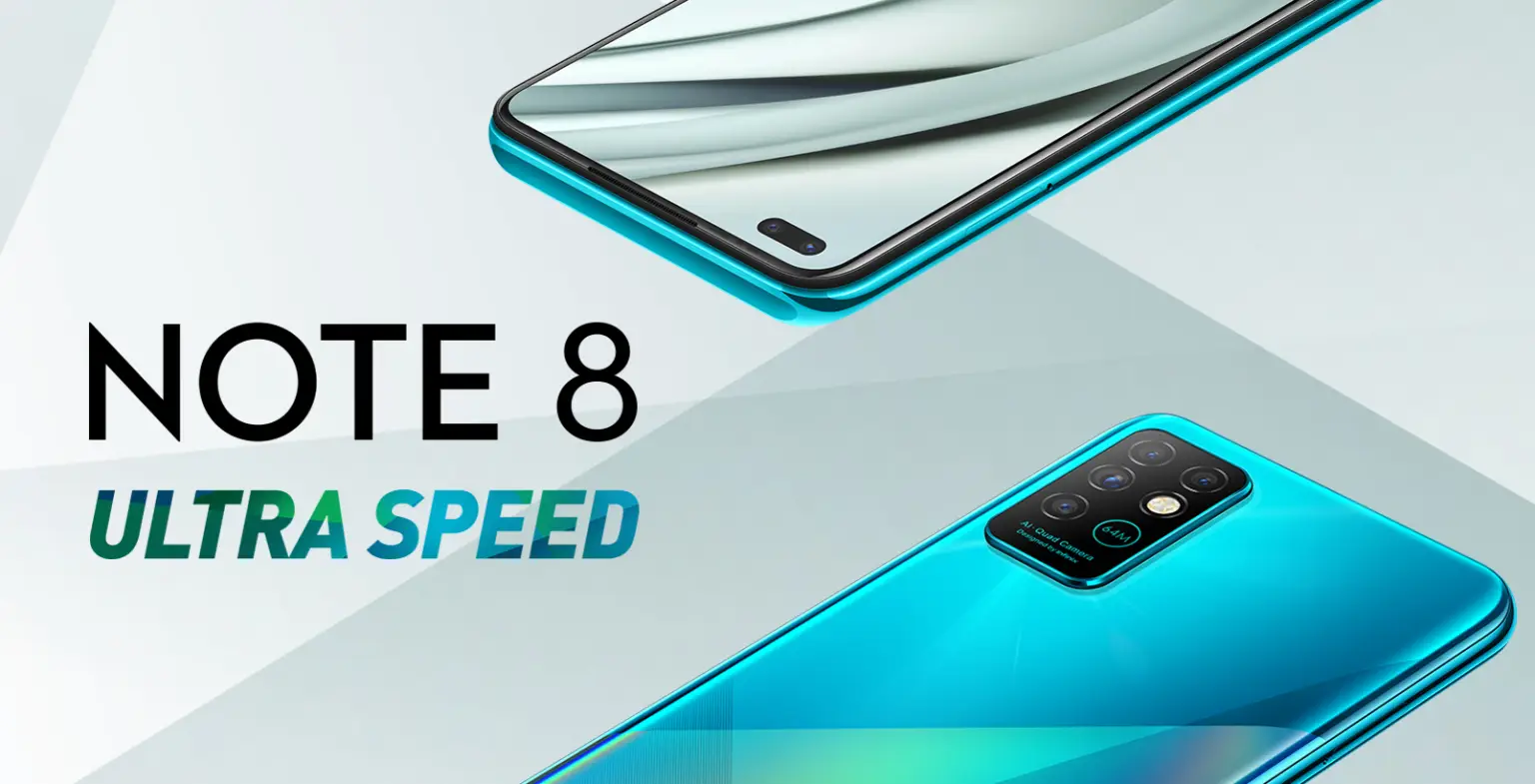
      The Chinese company, Infinix, announced its two new phones, the Note 8 and Note 8i, which both contain MediaTek Helio G80 processor.


      Infinix Note 8 offers a 6.95-inch LCD screen with a resolution of 1640 x 720 pixels with two holes for the two front cameras, which come with a resolution of 16 megapixels for the main, and a resolution of 2 megapixels for the other dedicated to photographing depth.


      The phone - which works with the XOS 7.1 user interface based on the Android operating system from Google - contains an octa-core MediaTek Helio G80 processor, which works at a frequency of 2.0 GHz, and comes with a Mali-G52 graphics processor.

      Infinix Note 8 offers 6 GB of RAM and 128 GB of internal storage, which is expandable via external memory cards.


      And on the back of the phone, there are four cameras; The main resolution of them is 64 megapixels, while the second, third, and fourth cameras come with one resolution of 2 megapixels, and are intended for photographing close-up objects and depth.


      Infinix Note 8 - which comes with a thickness of 9 mm - contains a battery with a capacity of 5,200 mAh with support for fast charging technology 18W. As for the fingerprint sensor, it comes with a side button.


      As for Infinix Note 8i, it offers a 6.78-inch IPS LCD screen with a resolution of 1640 x 720 pixels. As for the other specifications, it offers specifications similar to the specifications of Infinix Note 8, especially with regard to the operating system, processor, RAM size, internal storage capacity, and battery capacity.

      The phone differs in that the main rear camera comes with 48 megapixels instead of 64 megapixels, and the front camera is one, not double, and it comes with 8 megapixels instead of 16 megapixels.


      Infinix has not announced the price of the two phones, but Infinix Note 8 is expected to sell for $ 200.


      It is noteworthy that the Chinese company had announced in the middle of last August its smart phone Smart 5, which belongs to the low category, and works with the reduced version of the Android operating system.

      Google Maps will soon indicate how busy the place is, directly on the map

      Google Maps will soon indicate how busy the place is, directly on the map

      No Comments

      One of the most useful features in the Google Maps application, especially in the era of social distancing, is the ability to know how busy the restaurant or other business is before you arrive, and soon Google Maps will be able to show how busy the place is directly in the map view.


      Google Maps has always provided occupancy indicators, the ability to know roughly how many people are in a particular place, and even compare that to the normal number of people for that day and time, and as is the case today, you need to click on a specific location's menu in the Maps app to find the occupancy indicator.


      Google hosted the "Search On" event, which highlighted some of the latest features of Google Search and related products such as Assistant and Maps, and during the event, Prabhakar Raghavan, Head of Search and Assistant at Google, said: Busy indicators will soon appear directly on the map.


      Google Maps will place indicators like more busy than usual and busy as much as busy under the location names, and this should help make it easier to see where you might want to avoid when trying to maintain a proper social distance or even just sit at a table faster. Additionally, this can be useful to get an idea of ​​how busy a larger area is, rather than just a narrow view of individual spaces.


      Likewise, Google Maps on Android and iOS will be able to show how busy the place is when navigating to this location. As for when these new features of occupancy indicators will arrive in Maps, the only timeline provided by Google is the word (soon).


      Google has also launched a large group of ads, all aimed at improving its primary product, which is search. In Search On Even, the company explained that it will focus on using artificial intelligence to help its users, and among the new features is a new algorithm to better deal with misspellings in user inquiries, the ability to discover songs from buzz, and new tools to help students with homework, as Google announced Also, about updates to Google Lens, and other search tools. The Google event - streamed live - was in order to share several new developments in search ranking, made possible by the company's latest research in artificial intelligence.


      US networks do not support the promised 5G speeds

      US networks do not support the promised 5G speeds

      No Comments

      Apple is preparing to unveil its new iPhone lineup supporting 5G, shining a light on US networks and making it clear that the promised blazing speeds will not materialize for most people.

      The device, which analysts called the iPhone 12, could take advantage of 5G technology, which is theoretically 20 times faster than current 4G wireless networks.

      Current US 5G networks use low-band wireless spectrum that is slower than high-band spectrum, but is more reliable over long distances.

      It will likely take years before carriers ’promises of blazing speeds become a reality, making augmented reality and real-time cloud gaming seamless.

      Several telecom operators in the United States have deployed networks that rely on lower spectrum bands with slightly higher speeds than 4G.

      A significantly faster version of 5G has also been rolled out across the mid-range, but it is unlikely to reach three-quarters of Americans until 2025.

      The blazing speeds promoted by the carriers are a type of 5G network called mmWave operating over shorter distances.

      Verizon has the largest current mmWave network, which is available in limited territories only.

      And users of 5G networks through Verizon can get 10 times faster speeds compared to T-Mobile and Sprint speeds, but the actual average speeds were much lower.

      Verizon and AT&T customers with 5G phones saw an average increase in 4G speeds.

      The fastest 5G networks are spreading in South Korea and China, and Apple competes there with local brands, such as South Korean Samsung and Chinese Huawei.

      Apps that use higher speeds have not yet appeared to offer something new, and executives said interest in the 4G network was driven by Facebook and YouTube mobile apps.

      It seems that the development of applications that benefit from the fifth generation network will only take place as soon as the network and devices become available.

      And American consumers eager to buy a phone that supports the fifth generation networks will be those who need a new smartphone at the present time.

      If you're buying a phone that will last for three years, you want to make sure it supports the latest networking, said Geoff Blaber, vice president of research at CCS Insight.

      Blapper added: There is relatively little you can do with iPhone 5G that you cannot do today with iPhone 4G.

      The most prominent Android phones that you can buy for less than $ 100

      The most prominent Android phones that you can buy for less than $ 100

      No Comments


      Not everyone needs to spend more than $ 1,000 on their phones, especially those looking to cut back where possible, as you can now get an Android phone that you can trust.


      The most prominent Android phones that you can buy at $ 100 in 2020:


      Nokia 2.2:

      Nokia has been flooding the low and mid-budget Android market with several high-quality, affordable phones over the past few years, and Nokia 2.2 is one of the cheapest options released.


      Nokia 2.2 comes with a 5.71-inch screen, with narrow bezels, and a 5-megapixel front camera and a 13-megapixel rear camera.


      The Nokia 2.2 works with the MediaTek MT6761 processor, and it comes with 3 GB RAM, and you can also get 32 ​​GB of internal storage, and the Android phone contains a microSD card with which you can add another 400 GB of space, and the battery comes With a capacity of 3000 mAh.


      Nokia 1.3:

      HMD Global has another premium option which is the Nokia 1.3 phone, as this particular phone is powered by Android Go and comes with lightweight versions of Google services, where using Android Go is a great option in this category; Because it is designed to run on low-end devices.


      The Android Go phone comes with a 5.71-inch screen, Qualcomm 215 processor, 1GB RAM, 16GB internal storage, 8MP rear camera at the back, 5MP front camera, 3000mAh battery that lasts For more than a day.


      Galaxy A01:

      The Samsung phone comes with a 5.7-inch screen, and a modern design in line with expensive Samsung devices, and the Snapdragon 439 chipset is one of the most powerful chips you will find in this category. You also get 2GB of RAM, 16GB of storage, dual 13MP + 2MP cameras on the back, and a 3000mAh battery that lasts more than a day. The device also works on One UI 2.0 based on Android 10.


      Moto E6:

      This Android phone has many exciting features, including a 5.5-inch 720-pixel screen, Snapdragon 435 chipset, 2GB RAM, 16GB storage, MicroSD slot, 13MP camera, 3000 mAh battery.


      How can you block spam in Gmail with ease?

      How can you block spam in Gmail with ease?

      No Comments


      With the large number of websites that you register with your Gmail address, you may find that there are a lot of emails that come to your inbox, most of them are advertising or unimportant messages, which requires you to control your email and try to keep your inbox clean. As much as possible from junk and spam messages.


      Here's how to block annoying Gmail emails with ease?


       First: How to block a specific address in Gmail:

      If you find that there is a specific email address that sends you a lot of junk and you want to get rid of it, you can block it, and the next time a message is sent to you it will be transferred directly to the spam folder.


      to do this. Follow next steps:


      • Log in to your Gmail account.
      • In your inbox, open a message from the sending email address you want to block.
      • Click on the three dots in the top right corner of the incoming message screen.
      • From the menu that appears, tap Block.

      Note: If you want to unblock the email address, just follow the same previous steps, and choose Unblock.


      Second: How to unsubscribe from bulk emails:

      If you subscribe to a group email newsletter and want to leave, it is not necessary to completely block the sender of the email, you can only unsubscribe from the email list by following these steps:


      • Log in to your Gmail account.
      • In your inbox, open a message from the group email address.
      • Click on the Unsubscribe button next to the sender's name.

      It is worth noting that Google is doing its best to keep spam and unwanted emails from your inbox, but you may find some of them the way to your inbox, and then if you find some suspicious and unknown email addresses, you can help Google to provide a service. It is best for you and the community by reporting it to be banned from Google servers permanently.


      TikTok and WeChat managed to avoid Sunday's ban

      1 comment

      On Friday, the United States appeared ready to block new downloads of TikTok and WeChat, two popular apps based in China that the Trump administration has warned that they pose security threats to American users.


      The Commerce Department issued an order that would have banned new downloads from Sunday.


      On Saturday, WeChat saw a sharp spike in new installations in the US, according to the Analytics platform Sensor Tower, with an increase of 800 percent on a weekly basis.


      But as of Sunday afternoon, TikTok and WeChat have been pushed back from the US ban, at least temporarily.


      President Trump said on Saturday that he had given his approval of a deal between Walmart, Oracle and TikTok, which led to a one-week delay on the TikTok ban, while a California judge issued a preliminary injunction preventing the WeChat ban in the United States.


      TikTok deal appears to be a far cry from the Trump administration's original request to sell all app operations in the US.


      Oracle has become a trusted technology partner, will host all US user data, and secure the associated computer systems.


      Walmart and Oracle are participating in TikTok Global's financing round prior to the IPO in which they can take a cumulative stake of up to 20 percent in the new company.


      ByteDance said Monday: It will own 80 percent of TikTok Global, and the deal does not include the transfer of any algorithms.


      While all parties said: The new company will be based in the United States and will provide 25,000 jobs, the president's statement that the deal includes a $ 5 billion donation to education in the United States seemed to surprise BiteDance.


      Today, Monday, ByteDance contradicted Trump in a blog post entitled "Clarifying unfounded rumors about TikTok," saying: The so-called $ 5 billion tax payment to the US Treasury was just an estimate of the taxes that TikTok Global would pay over several years If the project is successful.


      For WeChat, the future in the United States is more uncertain, as federal judge Laurel Beeler wrote in her order that the lawsuit filed by a group of WeChat users in August raised serious questions regarding the Executive Order's threat to First Amendment rights.


      Beeler wrote: The plaintiffs' evidence reflects that WeChat is the only means of communication for many in the community, because China bans other applications, and because Chinese speakers with limited English proficiency have no other options.


      Beeler added that the ban on WeChat does not provide sufficient evidence that it is narrowly designed to resolve the US government's national security concerns regarding the app.


      Realme announces Narzo 20A, Narzo 20 and Narzo 20 Pro

      No Comments

      The Chinese company Realme launched its new series Narzo 20, which includes Narzo 20, Narzo 20 Pro and Narzo 20A, as well as Realme UI 2.0 user interface based on Android 11.


      The launch of the new series came shortly after the launch of Realme 7 and Realme 7 Pro and after the company launched in May 2020 the series Narzo in India with Narzo 10 and Narzo 10A.


      Realme is expanding its portfolio significantly in India, capitalizing on the success in the low-cost phone sector.


      Narzo 20A:

      This phone is very similar to the previous phone Narzo 10A, as there is a vertical camera at the back and a bump within 6.5-inch screen with a resolution of 1600 x 720 pixels, with a Snapdragon 665 processor.


      There is a triple rear camera with a 12-megapixel main lens, a second black and white lens with a resolution of 2 megapixels, and a three-megapixel retro lens, and these lenses work as an add-on to filters and portrait modes in the camera application.


      Narzo 20A comes with a 5000 mAh battery that does not have fast charging and is charged via microUSB port and offers reverse charging.


      The phone is available in a choice of 3/32 GB or 4/64 GB, and prices start from $ 115 and go up to $ 130.


      Narzo 20:

      The phone comes with a 6.5-inch screen with a bump, an 8-megapixel front camera, and a MediaTek Helio G85 processor, along with 4 GB of RAM, and 64 GB or 128 GB of expandable storage space using a microSD card.


      There is a triple rear camera with a 48-megapixel main lens, a second 8-megapixel wide-angle lens, and a 3-megapixel macro lens.


      Narzo 20 also contains reverse wireless charging, and Realm added a 6000 mAh battery with fast charging of 18 watts via USB-C port, prices start from $ 145 and go up to $ 155.


      Narzo 20 Pro:

      Contains Narzo 20 Pro chipset Helio G95 and charging SuperDart 65 watts, and there is 6 or 8 GB of RAM, along with 64 or 128 GB of storage space.


      It features a 6.5-inch screen with a refresh rate of 90 Hz, and there is a small bump in the upper left corner for the 16-megapixel front camera with a Sony IMX471 sensor.


      There is a quad rear camera with a 48-megapixel main lens, a second 8-megapixel wide-angle lens, a third 2-megapixel macro lens, and a fourth 2-megapixel black and white lens.


      The company added a 4,500 mAh battery, and prices start at $ 205 and go up to $ 230.


      US iPhone users are rushing to install WeChat before the ban

      US iPhone users are rushing to install WeChat before the ban

      No Comments

      IPhone users in the United States quickly installed the WeChat messaging app before the order went into effect, which prohibits them from downloading the app, as well as the short video sharing app TikTok.


      WeChat downloads rose to the 100th most-downloaded app in the US on Friday, according to mobile analytics company SensorTower. And the app usually ranks between 1000 and 1500 during the current year.


      A SensorTower spokesperson said in an email to Bloomberg News: Friday was the first time the app entered the top 500 so far in 2020.


      On Friday, the US government moved to ban WeChat, which is run by Chinese company Tencent, and TikTok, owned by Chinese company ByteDance, citing national security concerns. The ban is set to go into effect on Sunday, and US consumers will be prevented from downloading apps or installing updates.


      On Sunday, WeChat will also be subject to a ban that prevents it from using US companies to conduct transactions and make online traffic, which means that people who still use the app will likely encounter slowdowns and glitches. Because the third-party tech services that keep it running will not work anymore.


      "WeChat will be closed in the US for all practical purposes," Commerce Secretary Wilbur Ross said on Fox Business.


      SensorTower said: TikTok's ranking as the fourth most popular app on the App Store from Apple did not change on Friday. He did not withdraw from the top 15 throughout 2020.


      It is noteworthy that company ByteDance is currently negotiating a deal to hand over control of its operations and data in the United States to Oracle, in order to satisfy US concerns that the data of Americans who use the application will not fall into the hands of the Chinese government.


      TikTok will still be able to deal with US companies until November 12th. This means that the app, which is hugely popular among young Americans, will likely continue to work with users even after the Nov.3 presidential election.


      Chinese officials - who will have to agree to the final TikTok deal - described US actions against the two apps as "economic bullying."

      The 3 best apps that you can download outside of Google Play

      The 3 best apps that you can download outside of Google Play

      No Comments

      Google Play Store is without a doubt the best place to get apps for Android devices, as it contains a large group of the most famous developers and its security features are first-class, and you simply cannot get the same experience anywhere.


      However, this does not mean that Google Play includes all the applications and games available for download on the Internet, as there are good applications that are not allowed in the Google Play Store for one reason or another, and here are the best Android applications that you may want to download from outside the huge Google Play.


      APKMirror:

      APKMirror is a technical website and not an app, however, it has a bunch of apps that you can download sideways, and the major useful function of it is to try new or beta versions of apps that you can get regularly on the Google Play Store before you get to Store, as you can find an old version of an app or game that works better than the new one, it's a very reliable website APK files, and you never worry about things like malware or anything like that.


      Cerberus:

      Cerberus used to be one of the best Find My Phone apps in the big Google Play Store, however, Google has modified some of its rules regarding some permissions, and Cerberus has been launched in brief, however, the app is still on the website. Its official web site, and it's still a reasonably good option for its category, as it can take pictures of people trying to access your phone, show you your phone's location and send it to you and do all kinds of other jobs, but there's a required subscription cost of $ 5 a year for one device To $ 43 a year for up to ten devices.


      F-Droid:

      F-Droid is an excellent app for sideloading, as it is an app store similar to the mega Google Play Store, however, this app only contains FOSS apps (free and open source software). A great place for those who care about privacy and security; Because every application must publish open source code somewhere on the Internet, and you will not find many popular applications here, but you can find a lot of simple tools that will replace less reliable applications on the Google Play Store, in addition to that, the (F-Droid) is relatively easy to use and looks good.

      Amazon officially announces the launch of its podcast feature on Amazon Music

      Amazon officially announces the launch of its podcast feature on Amazon Music

      No Comments

      Amazon today announced the addition of a podcast feature to its Amazon Music streaming service, dropping Spotify's shares of more than 6 percent.


      The US e-commerce giant said in a statement: that users in the United States, the United Kingdom, Germany and Japan will be able to broadcast the podcast for free across all levels of the service Amazon Music.


      The company offers users a set of paid and free, ad-supported options to access the Amazon Music service. Prime customers also get access to over 2 million songs without ads as part of their $ 119 yearly membership.


      The company is launching the podcast feature as the industry becomes increasingly competitive. Spotify has invested heavily in the production of the original podcast and has acquired four companies to expand its library, including: The Ringer, Gimlet Media, Anchor and Parcast. Meanwhile, Apple's Podcasts app hosts a host of content for free, and it installs by default on iPhones.


      The company will offer listeners original and curated content. Its music streaming service will feature popular podcasts such as: Radiolab, Planet Money, and Crime Junkie, in addition to original shows produced exclusively for the celebrity-hosted service, such as producer DJ Khaled, actor Will Smith and sports broadcaster Dan Patrick and musician Becky G. Starting in February, Amazon will be the exclusive agent for Disgraceland, a popular podcast program.


      The multimedia podcast program hosted by Becky G will demonstrate a new integration between services (Amazon Music) and (Twitch), an integration that was announced earlier this month. This feature allows musicians to link their personal files on the Amazon-owned video site to the streaming service, allowing users to watch live Twitch content in the music app.


      The company said: Its Echo voice-activated devices will pull content from Amazon's music library when users ask their devices to play a podcast.


      Samsung is offering Z Fold 2, Tab S7, and Tab S7 Plus at these prices

      Samsung is offering Z Fold 2, Tab S7, and Tab S7 Plus at these prices

      No Comments

      On Friday, Samsung began launching its latest foldable smartphone, Galaxy Z Fold 2, in addition to its new Galaxy Tab S7 and Galaxy Tab S7 Plus tablets, in the global markets.


      The South Korean technology giant announced on September 1 the price of its two modern tablet computers, the Galaxy Tab S7 and Galaxy Tab S7 Plus, after they were announced on August 5, along with the Galaxy Note 20 phones. Samsung announced the same day about Price of its flagship foldable smartphone, Galaxy Z Fold 2.


      Samsung said at the time: The phone will be offered at $ 1,999.99 in the United States, and the initial order began on September 1, 2020, and on Friday, the company began shipping it to users.


      Samsung said that the computer Galaxy Tab S7 measuring 11 inches with support for networks (Wi-Fi) Wi-Fi will sell at a starting price of 649.99 USD. As for the Galaxy Tab S7 Plus, it will be sold at a starting price of $ 849.99 with support for Wi-Fi networks.


      Both computers come with an electronic stylus, but for those who want to have a keyboard, Samsung has launched a 50% discount on the price of the keyboard for those who initially order it with the computer, and in the offer the keyboard will be available at $ 99.99, and the original price is $ 199.99, for a computer Galaxy Tab S7, the Galaxy Tab S7 Plus is available in offer at $ 114.99, and the original price is $ 229.99.


      It is noteworthy that the two computers are available with a model that supports 5G networks, in addition to the fourth generation model. The Galaxy Tab S7 5G model starts at $ 849.99, and the Galaxy Tab S7 Plus model is $ 1,049.99.


      Samsung's entire strategy with Galaxy Z Fold 2 is to convince potential buyers that it has overcome the design issues of the first generation of the phone, with a glass screen, stronger joints, and better protection from shattering.

      How to set iPhone to recovery mode

      How to set iPhone to recovery mode

      No Comments

      It doesn't matter if it's an old iPhone or the best iPhone, problems - whether software or hardware - can happen to anyone, and if an iPhone, iPad, or iPod touch freezes, becomes unresponsive, or worst of all, it stops While the software update is not working, the recovery mode might be what you need, but just because you know how to use an iPhone in recovery mode on a previous model does not mean that it works the same way on your newer phone, as this process will change depending on the phone model you have.


      The phone's recovery mode is set and does not change with software updates, so if you just downloaded (iOS 14) on your (iPhone 11) phone, the recovery mode will be the same you had when you were working on (iOS 13).


      How to set iPhone 8, iPhone 8 Plus, iPhone X, iPhone XS, iPhone 11 or iPhone 11 Pro in recovery mode:

      Since these phones do not have the actual Home button, recovery mode is accessed by pressing a series of buttons:


      • If iTunes program is open on your Mac, close it.
      • Connect USB cable to Lightning port on the computer.
      • Connect the other end of USB cable to the Lightning port on your iPhone.
      • Open iTunes.
      • Press and release the Volume Up button and then the Volume Down button and then hold down the Side button until you see the recovery mode screen.

      If recovery mode does not work for some reason, you can also try putting your iPhone or iPad into (DFU) mode, as the device's firmware update mode is a little more difficult to access, but it often forces the recovery option even when nothing else works.


      How to put iPad Pro into recovery mode:

      Since iPad Pro 2018 does not have a Home button, recovery mode is accessed by pressing a series of buttons.


      Press and hold (Sleep / Wake) and the Volume Up or Volume Down buttons at the same time until you see the Power Off slider.

      Drag the Power Off slider to turn off iPad Pro.

      Connect the iPad Pro to the computer while holding down the "Sleep / Wake" button.

      Hold the button above (Sleep / Wake) until you see the recovery mode screen.

      How to stay safe while shopping online using your smartphone?

      How to stay safe while shopping online using your smartphone?

      No Comments

      Smartphones and mobile applications have made online shopping easy and convenient, while the benefits of shopping online with a smartphone are numerous, safety remains a major issue, and many shoppers find themselves vulnerable to scams and hacking attempts. In this post, we will give you 4 ways to improve your safety while shopping online using your smartphone.


      Shop from reputable sellers:

      Safety is mostly your responsibility when shopping online but a great deal of it is due to the cybersecurity strategy of the website or application you access.


      Most of the vendors require you to provide them with personal information during registration, which means that your data will be at risk of a data breach, but reputable e-commerce stores have robust security strategies that keep your data safe from other hackers and intruders.


      Use a VPN:

      Virtual Private Networks (VPN) do more than hide your true geographic location. They enhance your online security by encrypting the information you send from your device, making them incomprehensible to any third party intercepting the connection.


      Good VPNs can help you access various e-commerce stores, without fear of giving away sensitive information to third parties, and they also reduce browsing risks when using public Wi-Fi networks.


      Use mobile applications:

      Online shopping allows access to most stores from websites and mobile applications, but websites provide more flexibility, and you can access them from any device that has a browser, but applications remain more secure to use, because many e-commerce stores offer the option of two-factor authentication. When using their mobile apps.


      Do not save authentication credentials:

      Each time you enter a new username, the browser asks if you would like to save the information, as saving this information provides convenience and expedites subsequent login attempts, and saves the burden of saving your password, but it can put your safety at risk, as data breaches are considered More prevalent than you think, and if someone breaks into your mobile phone, they can easily access your account if the authentication information is saved.

      #E-commerce #e-shopping #online shopping

      Stylo

      Superb